

Bank texts
One automation reads every bank that texts you. You never type a sender name.
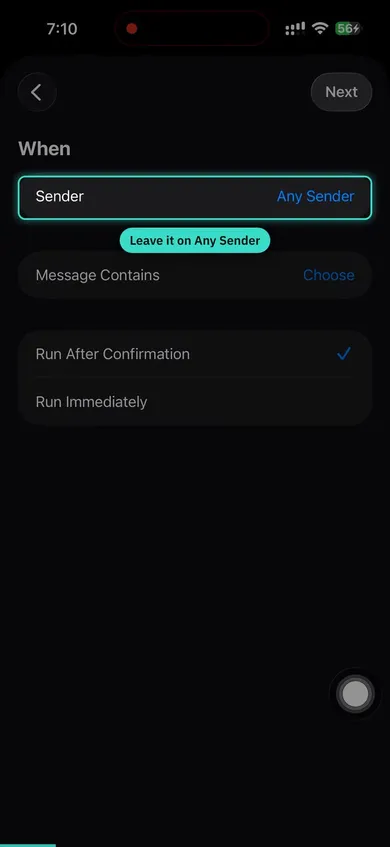
- In Shortcuts, open Automation, tap + and choose Message.
- Leave Sender on Any Sender. In Message Contains, type your currency code, like USD.
- It appears in every bank text and never in a personal one.
- Pick Run Immediately, then Create New Shortcut.
- Add Pockito's Process Bank SMS action, set its input to Content and turn off Show When Run.
- Test it: make a small card purchase. The expense shows up in Pockito a moment after your bank's text arrives.
Apple Pay
Each tap of your phone or watch becomes an expense, with the amount and the merchant filled in.
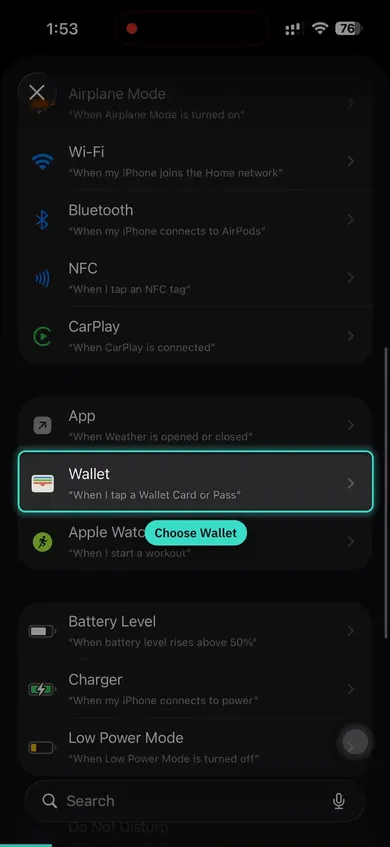
- In Shortcuts, open Automation, tap + and choose Wallet.
- Keep every card and category ticked.
- Pick Run Immediately, then Create New Shortcut.
- Add Pockito's Track Card Payment action, pass in Amount and Merchant and turn off Show When Run.
- Test it: make a small card purchase. The expense shows up in Pockito a moment after your bank's text arrives.
On iOS 27, the Shortcuts app looks different
The videos show iOS 26. On iOS 27 the steps are the same, but three things moved:
- Automations live in Library › Automation. Tap the plus there.
- The plus opens a box that asks you to describe a shortcut. Don't type: tap Edit at the top, then the Automation category, then Message or Wallet.
- Instead of Run Immediately, open Edit › Info › Privacy and turn on Allow Running When Locked.
Tips
- Set up both methods
- Apple Pay + SMS together give you full transaction coverage
- Use your language
- Add keywords in the language your bank sends messages in
- One automation covers all banks
- Leave it on Any Sender and Pockito tracks every bank from one automation
- Avoid OTP keywords
- Don't use keywords that appear in verification or OTP messages
- Bind an account to its bank
- In the account's details, pick its bank. Its texts then land in the right account even when they print no card number.
- No sender codes to enter
- Pockito reads the bank straight from the message, so you skip the numbers
- Write a rule once
- If something lands in the wrong place, write a rule and it stops happening.
- Test your setup
- Make a small purchase to verify transactions are tracked
Questions
Does Pockito read all my messages?
No. The automation hands Pockito only the texts that contain your currency code, the way bank texts do. Codes and conversations aren't read.
Which banks work?
Formats for 54 banks and wallets in 14 countries are built in, and Pockito's AI reads messages from other banks.
What if I'm offline when a text arrives?
Message saved. Pockito will finish tracking it when you open the app.
Is auto-track free?
Free includes automatic tracking for a few payments each period. Pro removes the limit.
Read next
- Add money in Set up auto-track on Android Allow bank messages, tick your banks, bring in the texts you already have.
- Wallet Make bank texts land in the right account Claim the card digits, or pick the bank that texts you.
- Add money in Rules: tell Pockito once When this happens, then do that. Your rules decide before Pockito does.
- When something's off Auto-track missed a payment Check the automation, the keyword, the account, and Needs a look.
Did this answer it?
Stuck on the setup? We'll walk you through it on WhatsApp, in your language.Add money in
- Every way to add money
- Type an entry yourself
- Say it
- Scan a receipt, a screenshot, a file or a bank text
- What Scan understands
- Set up auto-track on iPhone
- Set up auto-track on Android
- Add from Siri, widgets and Control Center
- Moving money between your accounts
- Needs a look
- Rules: tell Pockito once
- Change, explain or remove an entry
- Categories, subcategories and labels
- Templates for things you log often