

Guide
Everything Pockito does, and how to do it.
65 answers, step by step, for every screen on iPhone and Android, checked against the app as it is today.
New to Pockito? Start here.
Five steps, in order. Each one takes a few minutes.
- What Pockito does One number for today, every way to add money, and a home for every amount.
- Sign in, or use it with no account Apple, Google or email, or Incognito Mode with no account at all.
- Set up your money in a minute Your pay, your savings and what you spend on. Pockito drafts the rest.
- Add an account Pick the kind, tell Pockito how it behaves, and set today's balance once.
- Set up auto-track On iPhone, two Shortcuts automations. On Android, allow bank messages. iPhone Android
Every chapter
Pick a chapter, or search above. Each article answers one question and shows the screen it's about.
Get started 6 articles
What Pockito does, signing in, and your first minutes in the app.
Add money in 14 articles
Every way an amount gets into Pockito, and how it lands in the right place.
- Every way to add money
- Type an entry yourself
- Say it
- Scan a receipt, a screenshot, a file or a bank text
- What Scan understands
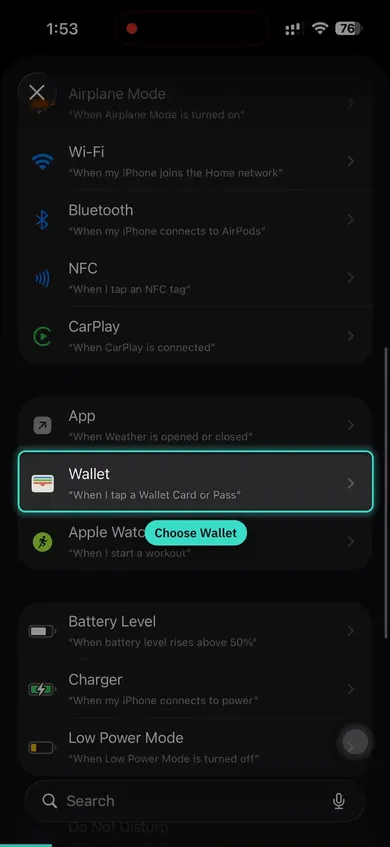
- Set up auto-track on iPhone
- Set up auto-track on Android
- Add from Siri, widgets and Control Center
- Moving money between your accounts
- To review
- Rules: tell Pockito once
- Change, explain or remove an entry
- Categories, subcategories and labels
- Templates for things you log often
Wallet 8 articles
Your accounts, cards, wallets and gold, and how each one behaves.
Repeating 7 articles
Bills, subscriptions and the money you expect, counted before you spend.
Home and your budget 6 articles
Safe to spend, your money setup, the period, limits and every entry.
Insights, recaps and chat 5 articles
Your period read back to you, any stretch of days in a recap, and answers on request.
Your data and privacy 6 articles
Sync, backup, export, import, what AI sees, and deleting your account.
Settings 5 articles
Notifications, the lock, how Pockito looks, widgets, and your plan.
When something's off 8 articles
What to check when a payment is missing, a number looks wrong, or the app won't open.
Auto-track, in two videos
Watch it once, then set it up beside the video.
The same videos the app shows on its Auto-Track screen. English narration, with captions in all 24 languages, picked from the language you read this page in.
- Captions in 24 languages, switchable while it plays
- 3:17 for bank texts, 3:35 for Apple Pay
- Nothing loads until you press play
Questions that come up
The questions people ask most, answered in a line. Open one when you need it.
What leaves my phone?
When you ask for a briefing or talk to the chat, the spending summary that question needs goes to OpenAI at that moment, and nothing more. Say no and everything else works the same. If you sign in, your records also sync to your account so your other phone sees them.
How do I get Auto-Track to catch more?
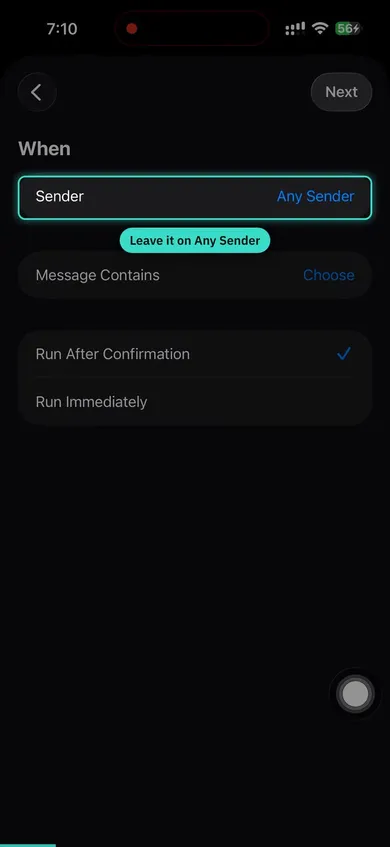
Leave it on Any Sender so one setup covers every bank you use. Add keywords in the language your bank writes in, and keep away from words that also appear in verification codes. In an account's details, pick its bank: its messages then land in that account even when they print no card number.
How do I stop something landing in the wrong place?
Write a rule. Rules read top to bottom and the first match wins, so yours decide before Pockito sorts anything itself. Every condition has to be true, so leaving one out makes a rule match more, not less. Pockito also picks up rules from your corrections, and the ones you wrote still come first.
What happens to my answer under “To review”?
It becomes a line in Rules. The same charge lands where you said from then on, without asking again. A rule changes what comes next, not what you already filed.
What is Arriving for?
Money that lands on a rhythm: a salary, a retainer, a sweep into savings. Pockito counts it as part of what you earn each month, so Home stands on your real income instead of one number you typed at setup.
Why does changing the period change every screen?
Because there is one window, not one per screen. The pill on Home sets it, and Home, Insights and your limits all read the same range. Free covers today and the current period; the longer ranges come with Pro.
How is my gold priced?
Add gold in Wallet by weight and karat. Add what you paid per gram if you know it: that's what lets Pockito show your gain or loss. A piece you would rather not count can stay in Wallet and sit outside your net worth. Free includes a holding so you can try it; Pro removes the limit.
 Found a bug, or missing something?
Message us on WhatsApp. A real human answers, usually within hours. Ideas and requests are welcome at support@pockitoai.app.